JavaFX - Modern GUI Development
Master JavaFX: Learn to create modern, rich desktop applications with Scene Builder, FXML, CSS styling, animations, charts, and 3D graphics using Java's premier GUI framework.
What is JavaFX?
JavaFX is a set of graphics and media APIs that enables developers to create feature-rich desktop applications. Key features include:
| Feature | Description |
|---|---|
| Hardware-accelerated graphics | Uses GPU for smooth rendering |
| CSS styling | Style UI with familiar CSS syntax |
| FXML | Declarative XML-based UI markup |
| Rich controls library | Tables, trees, web views, charts |
| Media support | Audio and video playback |
| 2D/3D graphics | Built-in shapes and 3D transformations |
| Animation API | Smooth timeline-based animations |
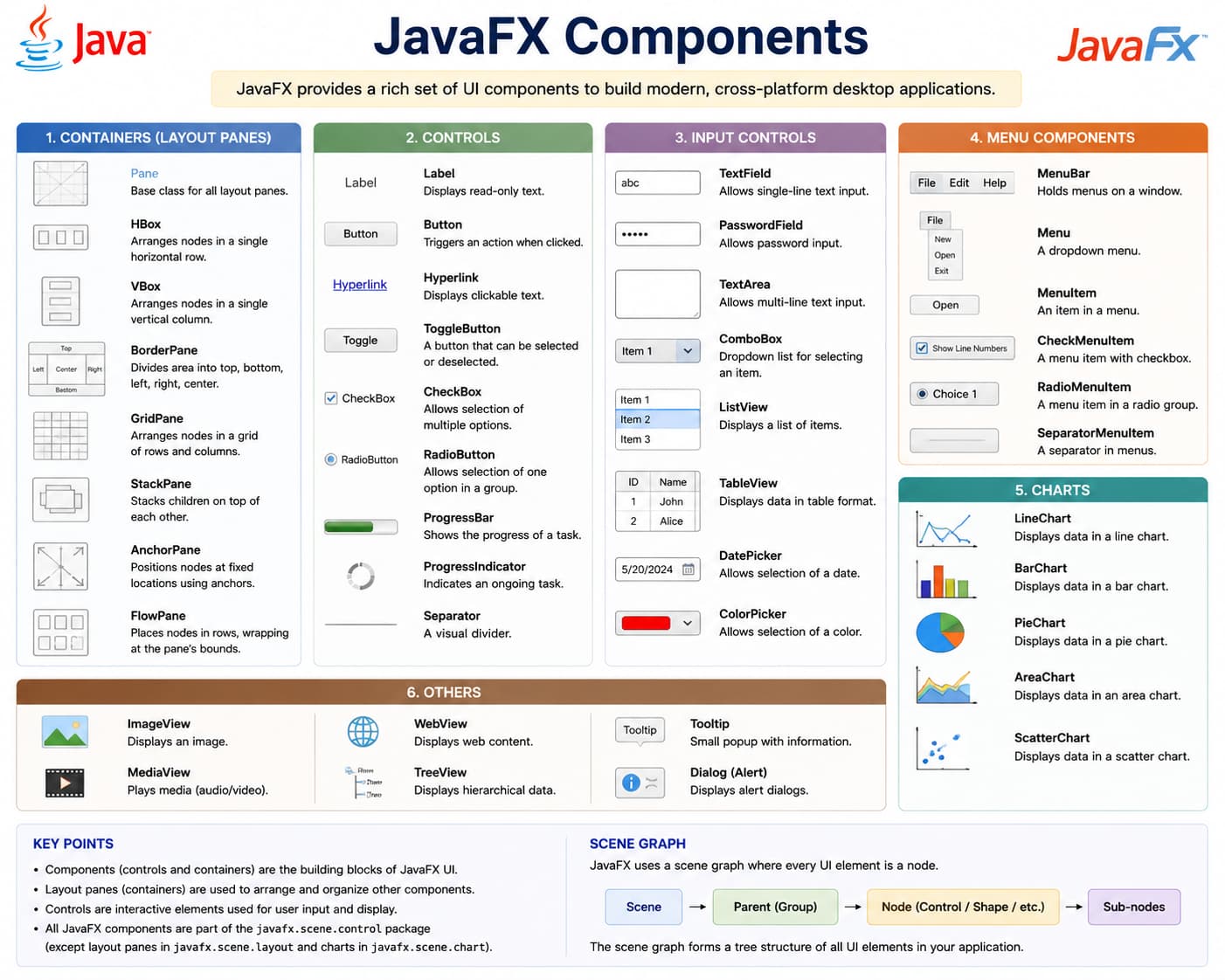
Setup and Installation
JDK Compatibility
- Java 8: JavaFX is bundled with the JDK
- Java 11+: JavaFX must be added separately (removed from JDK)
Maven Configuration (Java 11+)
Add these dependencies to your pom.xml:
<dependency>
    <groupId>org.openjfx</groupId>
    <artifactId>javafx-controls</artifactId>
    <version>21</version>
</dependency>
<dependency>
    <groupId>org.openjfx</groupId>
    <artifactId>javafx-fxml</artifactId>
    <version>21</version>
</dependency>
Gradle Configuration
dependencies {
    implementation 'org.openjfx:javafx-controls:21'
    implementation 'org.openjfx:javafx-fxml:21'
}
IDE Setup (IntelliJ IDEA)
When running, add these VM options:
--module-path /path/to/javafx-sdk/lib --add-modules javafx.controls,javafx.fxmlYour First JavaFX Application (Hello World)
import javafx.application.Application;
import javafx.scene.Scene;
import javafx.scene.control.Button;
import javafx.scene.layout.StackPane;
import javafx.stage.Stage;

public class HelloWorld extends Application {

    @Override
    public void start(Stage primaryStage) {
        // Create a button
        Button btn = new Button();
        btn.setText("Say 'Hello World'");

        // Add event handler
        btn.setOnAction(event -> {
            System.out.println("Hello World!");
        });

        // Create layout and add button
        StackPane root = new StackPane();
        root.getChildren().add(btn);

        // Create scene (300x250 pixels)
        Scene scene = new Scene(root, 300, 250);

        // Set up stage and show
        primaryStage.setTitle("Hello World!");
        primaryStage.setScene(scene);
        primaryStage.show();
    }

    public static void main(String[] args) {
        launch(args);  // Entry point
    }
}
To run:
javac HelloWorld.java
java HelloWorld
What's happening:
- Your class extends
Application - The
start()method is the main entry point launch(args)initializes the JavaFX runtime
Core Concepts: Stage, Scene, and Nodes
JavaFX uses a hierarchical structure:
Stage (Window)
  └── Scene (Container)
       └── Scene Graph (Tree of Nodes)
            ├── Button
            ├── Label
            └── Layout Container
                 └── More Nodes...
Stage (Window)
Stage stage = new Stage();
stage.setTitle("My Window");
stage.setWidth(400);
stage.setHeight(300);
stage.setResizable(true);
stage.show();
Scene
// Scene with node and size
Button button = new Button("Click Me");
Scene scene = new Scene(button, 400, 300);

// Scene with layout
VBox vbox = new VBox(button);
Scene scene2 = new Scene(vbox, 400, 300);
Node Properties (Common to all UI elements)
Button btn = new Button("Submit");
btn.setVisible(true);
btn.setDisable(false);
btn.setOpacity(0.8);
btn.setStyle("-fx-background-color: blue;");
Layouts and UI Controls
Common Layouts
| Layout | Description |
|---|---|
| VBox | Vertical arrangement |
| HBox | Horizontal arrangement |
| GridPane | Grid layout (rows and columns) |
| BorderPane | Top, bottom, left, right, center regions |
| StackPane | Stacked nodes (one on top of another) |
Layout Examples
VBox (Vertical):
VBox vbox = new VBox(10); // 10px spacing
vbox.getChildren().addAll(
    new Label("Username:"),
    new TextField(),
    new Label("Password:"),
    new PasswordField(),
    new Button("Login")
);
GridPane (Form layout):
GridPane grid = new GridPane();
grid.setHgap(10);
grid.setVgap(10);

grid.add(new Label("Name:"), 0, 0);
grid.add(new TextField(), 1, 0);
grid.add(new Label("Email:"), 0, 1);
grid.add(new TextField(), 1, 1);
BorderPane (Main layout):
BorderPane border = new BorderPane();
border.setTop(new Label("Header"));
border.setCenter(new TextArea("Main content"));
border.setBottom(new HBox(new Button("OK"), new Button("Cancel")));
Common UI Controls
// Basic controls
Label label = new Label("Enter data:");
TextField textField = new TextField();
PasswordField pwdField = new PasswordField();
Button button = new Button("Submit");
CheckBox checkbox = new CheckBox("Accept terms");
RadioButton radio = new RadioButton("Option 1");

// Selection controls
ComboBox<String> combo = new ComboBox<>();
combo.getItems().addAll("Option A", "Option B", "Option C");

// ListView
ListView<String> listView = new ListView<>();
listView.getItems().addAll("Item 1", "Item 2", "Item 3");

// TableView
TableView<Person> tableView = new TableView<>();
Event Handling
JavaFX uses a functional event handling model.
Button Click Event
Button btn = new Button("Click Me");

// Lambda expression (modern approach)
btn.setOnAction(event -> {
    System.out.println("Button clicked!");
});

// Method reference
btn.setOnAction(this::handleButtonClick);
Mouse Events
btn.setOnMouseEntered(event -> {
    btn.setStyle("-fx-background-color: lightblue;");
});

btn.setOnMouseExited(event -> {
    btn.setStyle("-fx-background-color: lightgray;");
});

btn.setOnMouseClicked(event -> {
    if (event.getClickCount() == 2) {
        System.out.println("Double-click detected!");
    }
});
Keyboard Events
Scene scene = new Scene(root, 400, 300);
scene.setOnKeyPressed(event -> {
    switch (event.getCode()) {
        case ENTER:
            System.out.println("Enter pressed");
            break;
        case ESCAPE:
            System.out.println("Escape pressed");
            break;
        default:
            break;
    }
});
TextField Events
TextField tf = new TextField();
tf.textProperty().addListener((observable, oldValue, newValue) -> {
    System.out.println("Text changed from '" + oldValue + "' to '" + newValue + "'");
});
CSS Styling
JavaFX uses CSS-like syntax prefixed with -fx-.
Inline Styling
Button btn = new Button("Styled Button");
btn.setStyle(
    "-fx-background-color: #4CAF50; " +
    "-fx-text-fill: white; " +
    "-fx-font-size: 14px; " +
    "-fx-padding: 10px 20px;"
);
External CSS File (style.css)
/* style.css */
.root {
    -fx-font-family: "Segoe UI";
    -fx-base: #f0f0f0;
}

.button {
    -fx-background-color: linear-gradient(to bottom, #4CAF50, #45a049);
    -fx-text-fill: white;
    -fx-font-size: 14px;
    -fx-padding: 10px 20px;
    -fx-background-radius: 5px;
}

.button:hover {
    -fx-background-color: linear-gradient(to bottom, #45a049, #3e8e41);
    -fx-cursor: hand;
}

.button:pressed {
    -fx-background-color: #3e8e41;
}

.label {
    -fx-font-size: 12px;
    -fx-text-fill: #333333;
}

.text-field {
    -fx-padding: 8px;
    -fx-border-color: #cccccc;
    -fx-border-radius: 4px;
}

.text-field:focused {
    -fx-border-color: #4CAF50;
}
Loading CSS
Scene scene = new Scene(root, 600, 400);
scene.getStylesheets().add(getClass().getResource("style.css").toExternalForm());
// or
scene.getStylesheets().add("file:///path/to/style.css");
FXML (Declarative UI)
FXML separates UI layout from application logic using XML.
FXML File (login.fxml)
<?xml version="1.0" encoding="UTF-8"?>
<?import javafx.scene.layout.VBox?>
<?import javafx.scene.control.Label?>
<?import javafx.scene.control.TextField?>
<?import javafx.scene.control.PasswordField?>
<?import javafx.scene.control.Button?>

<VBox xmlns="http://javafx.com/javafx/21"
      xmlns:fx="http://javafx.com/fxml/1"
      fx:controller="LoginController"
      spacing="10" alignment="CENTER"
      style="-fx-padding: 20;">

    <Label text="Login Form" style="-fx-font-size: 20px;"/>
    <TextField fx:id="usernameField" promptText="Username"/>
    <PasswordField fx:id="passwordField" promptText="Password"/>
    <Button text="Login" onAction="#handleLogin"/>
    <Label fx:id="messageLabel" style="-fx-text-fill: red;"/>

</VBox>
Controller Class (LoginController.java)
import javafx.fxml.FXML;
import javafx.scene.control.Label;
import javafx.scene.control.PasswordField;
import javafx.scene.control.TextField;

public class LoginController {

    @FXML
    private TextField usernameField;

    @FXML
    private PasswordField passwordField;

    @FXML
    private Label messageLabel;

    @FXML
    private void handleLogin() {
        String username = usernameField.getText();
        String password = passwordField.getText();

        if ("admin".equals(username) && "secret".equals(password)) {
            messageLabel.setStyle("-fx-text-fill: green;");
            messageLabel.setText("Login successful!");
        } else {
            messageLabel.setStyle("-fx-text-fill: red;");
            messageLabel.setText("Invalid credentials!");
        }
    }
}
Loading FXML in Main Application
import javafx.application.Application;
import javafx.fxml.FXMLLoader;
import javafx.scene.Parent;
import javafx.scene.Scene;
import javafx.stage.Stage;

public class MainApp extends Application {

    @Override
    public void start(Stage primaryStage) throws Exception {
        Parent root = FXMLLoader.load(getClass().getResource("login.fxml"));
        primaryStage.setTitle("Login Application");
        primaryStage.setScene(new Scene(root, 300, 250));
        primaryStage.show();
    }

    public static void main(String[] args) {
        launch(args);
    }
}
Animation and Effects
Transitions (Built-in Animations)
import javafx.animation.*;
import javafx.util.Duration;

Button btn = new Button("Animate Me");

// Fade transition
FadeTransition fade = new FadeTransition(Duration.seconds(2), btn);
fade.setFromValue(1.0);
fade.setToValue(0.3);
fade.setCycleCount(Animation.INDEFINITE);
fade.setAutoReverse(true);
fade.play();

// Translate (move) transition
TranslateTransition translate = new TranslateTransition(Duration.seconds(1), btn);
translate.setByX(100);
translate.setByY(50);
translate.setCycleCount(2);
translate.setAutoReverse(true);
translate.play();

// Rotate transition
RotateTransition rotate = new RotateTransition(Duration.seconds(2), btn);
rotate.setByAngle(360);
rotate.setCycleCount(Animation.INDEFINITE);
rotate.play();

// Scale transition
ScaleTransition scale = new ScaleTransition(Duration.seconds(1), btn);
scale.setToX(1.5);
scale.setToY(1.5);
scale.setAutoReverse(true);
scale.setCycleCount(Animation.INDEFINITE);
scale.play();
Timeline (Custom Animations)
Timeline timeline = new Timeline();
KeyFrame keyFrame = new KeyFrame(
    Duration.seconds(2),
    event -> System.out.println("2 seconds passed!")
);
timeline.getKeyFrames().add(keyFrame);
timeline.setCycleCount(3);
timeline.play();
Visual Effects
import javafx.scene.effect.*;

Button btn = new Button("Effect Button");

// Drop shadow
DropShadow dropShadow = new DropShadow();
dropShadow.setRadius(5.0);
dropShadow.setOffsetX(3.0);
dropShadow.setOffsetY(3.0);
btn.setEffect(dropShadow);

// Gaussian blur
GaussianBlur blur = new GaussianBlur();
blur.setRadius(5);
btn.setEffect(blur);

// Reflection
Reflection reflection = new Reflection();
reflection.setFraction(0.7);
btn.setEffect(reflection);
Working with Command Line Arguments
JavaFX applications can access command-line arguments through the Application.Parameters class.
import javafx.application.Application;
import javafx.stage.Stage;
import java.util.List;

public class ArgsApp extends Application {
    @Override
    public void start(Stage stage) {
        List<String> params = getParameters().getRaw();
        List<String> unnamed = getParameters().getUnnamed();
        System.out.println("Raw parameters: " + params);
        System.out.println("Unnamed arguments: " + unnamed);
    }

    public static void main(String[] args) {
        launch(args);
    }
}
Run with named and unnamed parameters:
java ArgsApp --mode=debug input.txt output.txtSummary and Best Practices
| Best Practice | Reason |
|---|---|
Use Platform.runLater() for UI updates from threads | Prevents threading errors |
| Separate UI from logic with FXML | Easier maintenance and testing |
| Use CSS for styling | Consistent look across application |
| Bind properties rather than manually updating | Reduces boilerplate code |
| Handle stage close events | Clean up resources |
| Follow MVC/MVP patterns | Better code organization |